
Custom merch field guide
Preview Custom Merch in 3D Before You Order
Upload your art, compare five custom products, and check placement in a free live 3D preview before ordering.
- Start from one piece
- Free live 3D preview
- Five product formats

Planning custom merch is easier when you can see how your artwork sits on the product before you order. ArteTribe lets you start from one piece, upload artwork you have the right to use, and check applicable products in a free live 3D preview.
Choose a supported product and move through its product-specific controls. The preview responds as you work, so you can inspect custom acrylic charms, custom stickers, UV DTF transfers, and apparel DTF transfers from useful angles before continuing.
What the live preview helps you check
From artwork to custom merch in four clear steps
The controls vary by product, but the decision process stays simple. Treat the preview as a visual preflight check before you commit.
Choose
Open the product you want to customize. Start with the product itself, because each preview is built around its physical form.
Upload
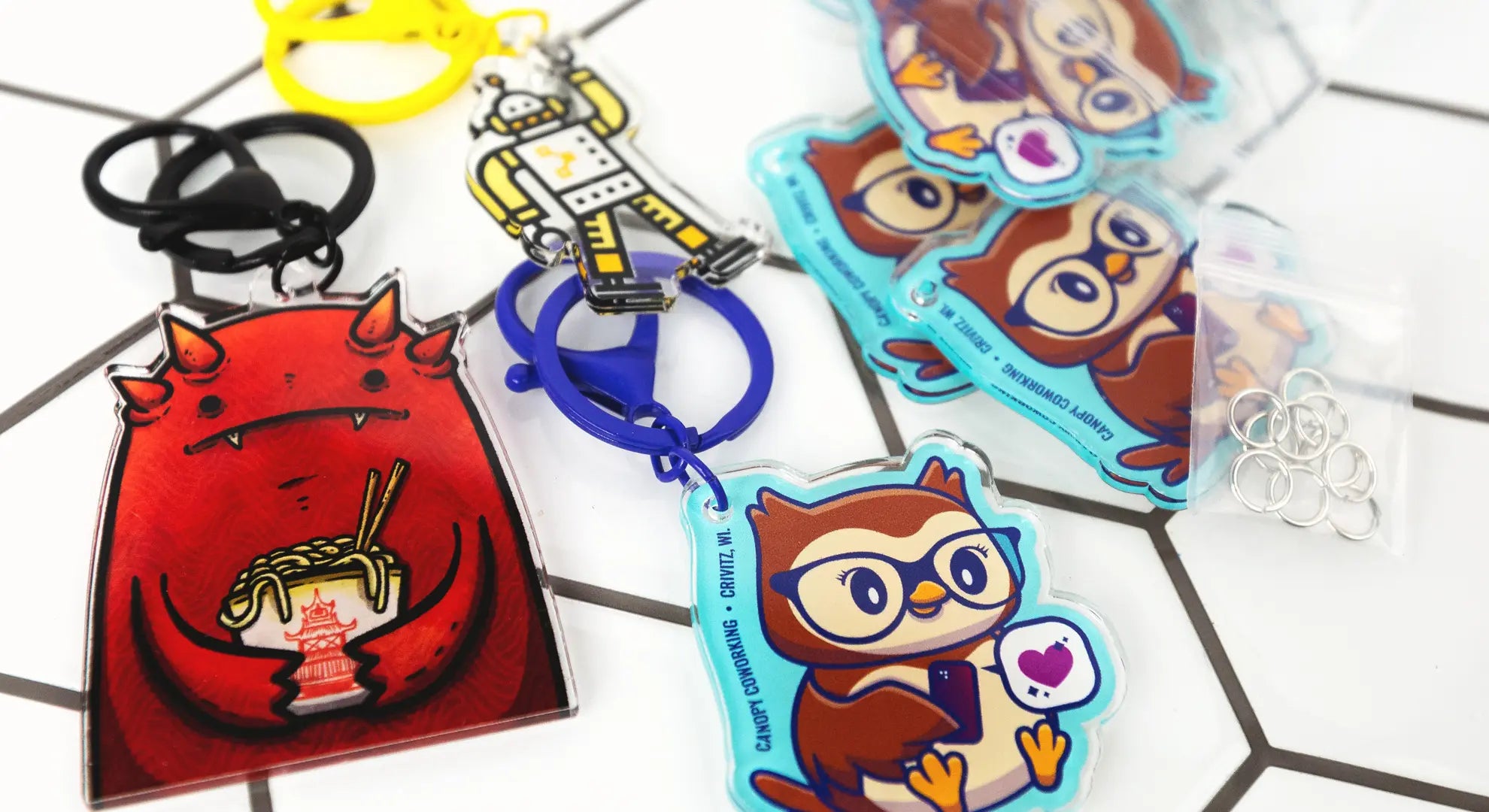
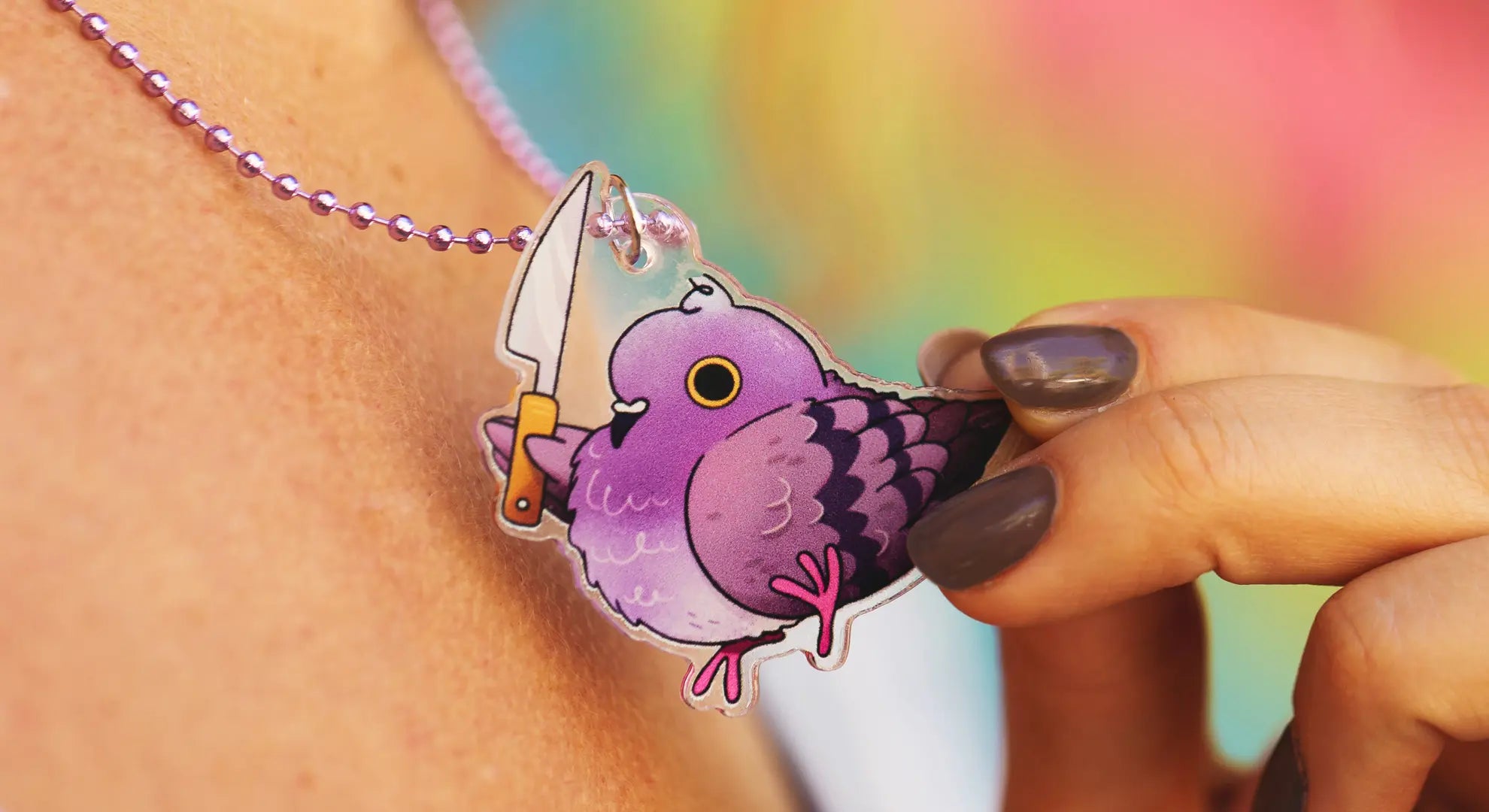
Add your artwork in the format requested on the page. For acrylic charms, a transparent PNG usually produces the cleanest visible outline.
Adjust
Rotate, reposition, or review the available views. Look slowly at edges, orientation, and the relationship between artwork and product.
Order
Continue only when the setup makes sense. Follow the next step shown on that product page, then review the selected options before adding the item to your cart.
Prepare the artwork before you upload
A 3D preview can reveal placement problems, but it works best when the source artwork is already clean. Give yourself a few minutes to check the file before opening the product editor.
- 01Use the clearest source available. A crisp original file makes small details easier to judge than a compressed image copied from a message or social post.
- 02Remove anything you do not want printed. Check the background, stray marks, hidden borders, and empty space around the design. For an acrylic charm, a transparent PNG usually makes the intended outline easier to read.
- 03Decide which way is up. Orientation matters on charms, garments, transfers, and multi-face products. Rotate the preview and confirm the design still makes sense from the angle a customer will see.
- 04Keep important details away from edges. If a face, word, signature, or fine line sits uncomfortably close to a boundary in the preview, adjust it before proceeding.
- 05Inspect at more than one angle. A front view is useful, but rotating the model may expose a reversed face, awkward hole position, or unbalanced placement that was easy to miss.
This short preflight is especially helpful when one illustration will be reused across several products. The same composition may need different spacing on a charm, sticker, hard-surface transfer, and T-shirt.
Choose the right custom merch product
The best question is not simply, "Does it look good?" Each custom merch format needs a different final check before ordering.
If one illustration will appear across a small product collection, preview every format separately. A composition that feels balanced inside a die-cut sticker may need more breathing room around an acrylic charm hole. A transfer that reads clearly on a flat hard surface may need a different position on a garment. Keep the identity of the artwork consistent, but let the placement respond to the object.
It also helps to compare previews side by side before placing a mixed order. Look for a consistent upright direction, similar visual weight, and enough clear space around the most recognizable part of the design. That small review can make separate products feel like one intentional collection.


Custom acrylic boxes
Review the uploaded faces as one assembled object, with special attention to artwork direction and the edges that meet.
Open product
Custom die-cut stickers
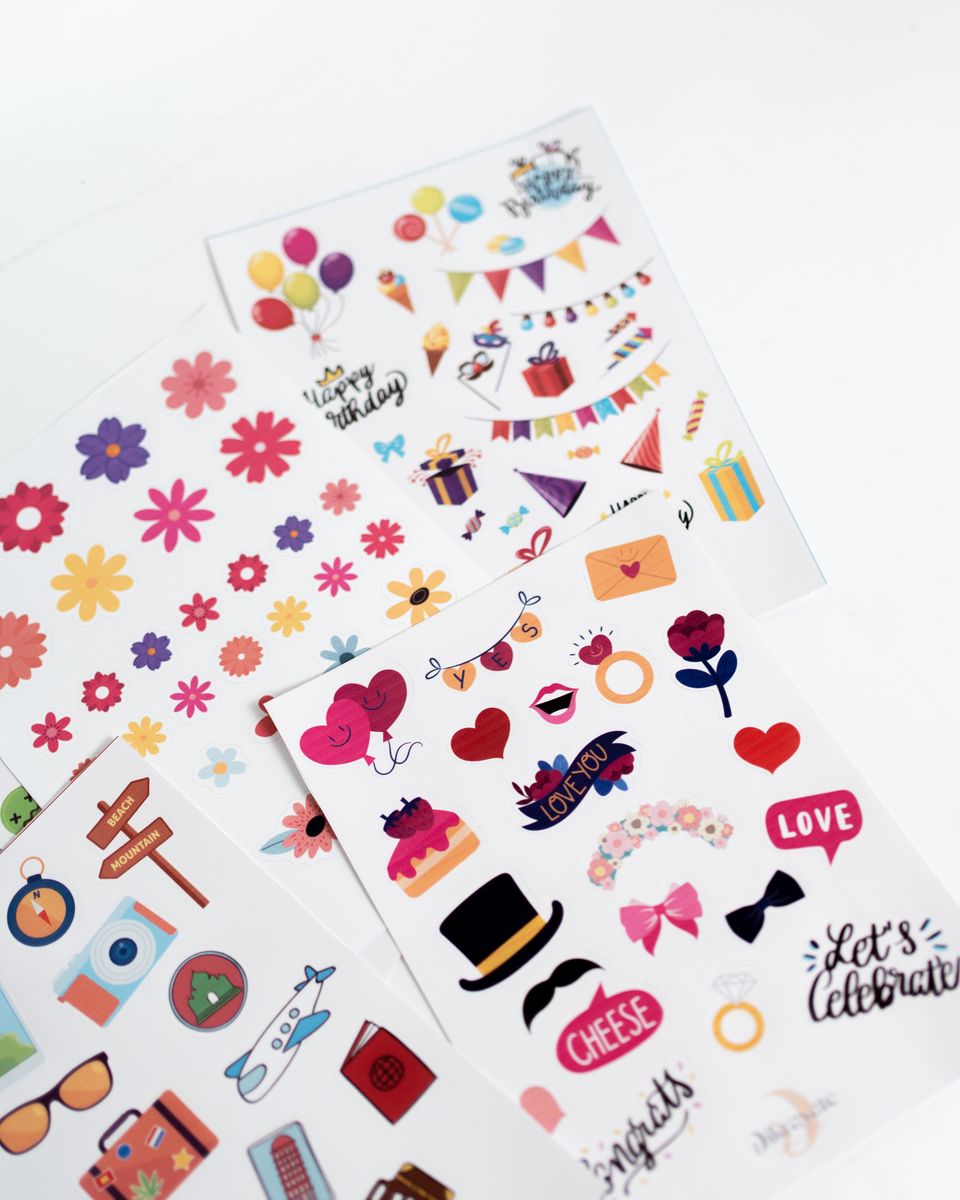
Inspect the visible cut shape, outer spacing, and how the artwork reads at the selected product scale.
Open product
Custom UV DTF transfers
Often searched as UV DTF stickers, these transfers need a careful placement and direction check on the intended hard surface.
Open product
Custom DTF transfers
For DTF transfers on shirts, hoodies, hats, or bags, review the design's position, direction, and visual balance on the garment.
Open productWhat the 3D preview does not confirm
A preview is a decision aid, not a production guarantee. Screen settings can affect perceived color, and a 3D view cannot replace final confirmation of physical dimensions or production details.
Use it to catch visual setup issues early. Then review the product options and submitted files carefully before production.
Only upload artwork that you own or have permission to use.
Common questions before the first preview
Does the live 3D preview cost extra?
No. ArteTribe provides the live 3D preview free on applicable product pages, so you can inspect the setup before deciding whether to order.
Do I need to order a large quantity?
No. The featured custom merch can start from one piece. That makes the preview useful for a sample, a personal project, or a small first release as well as a larger order.
Will the screen match the final color exactly?
Not necessarily. Displays render color differently, and a digital 3D view is not a physical proof. Use the preview for placement, direction, visible crop, and product setup, then review production details separately.
Can I upload any image I find online?
Only upload artwork that you created or have the right to use. The preview tool does not change the ownership or licensing requirements of an image.
What should I do if the preview looks wrong?
Pause before ordering. Recheck the source image, background, orientation, and selected product options. If an important detail is clipped or misplaced, correct the artwork or setup and preview it again.
Preview your first custom merch product from one piece
Start with a custom acrylic charm and a transparent PNG. Check the outline, hole position, border, and direction before moving on to your order.
Open the free 3D preview